Resize photos without squashing them.
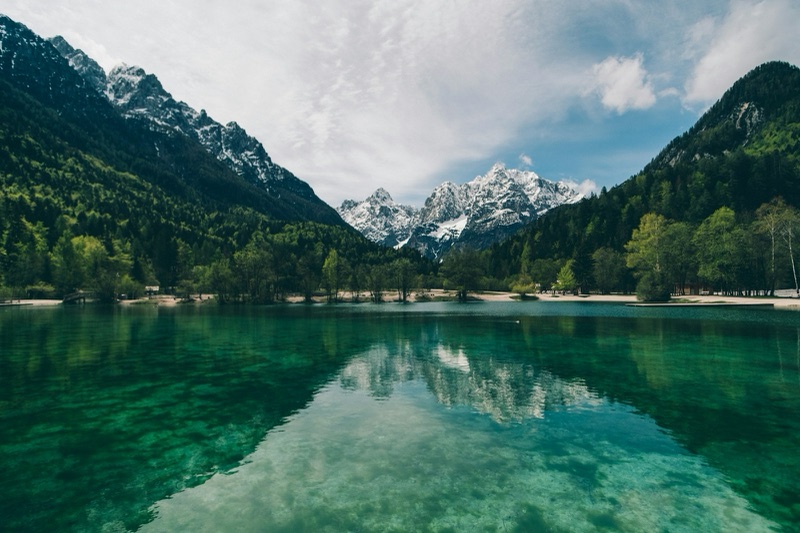
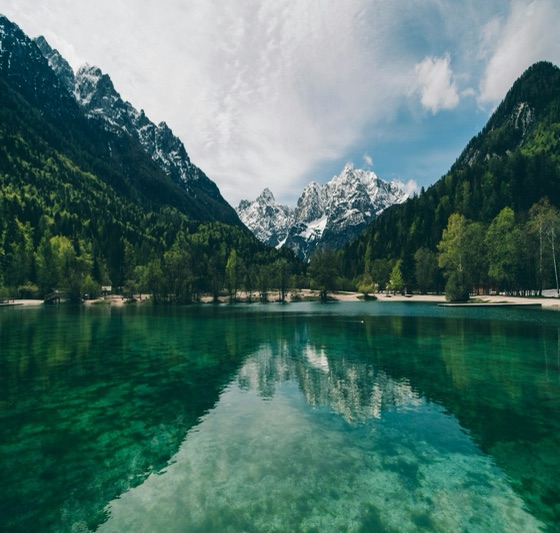
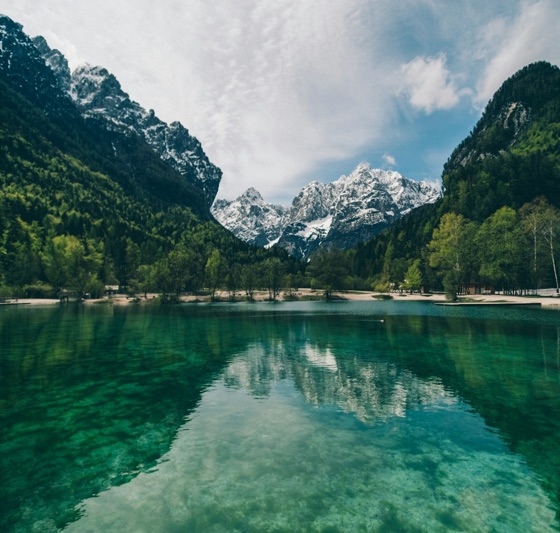
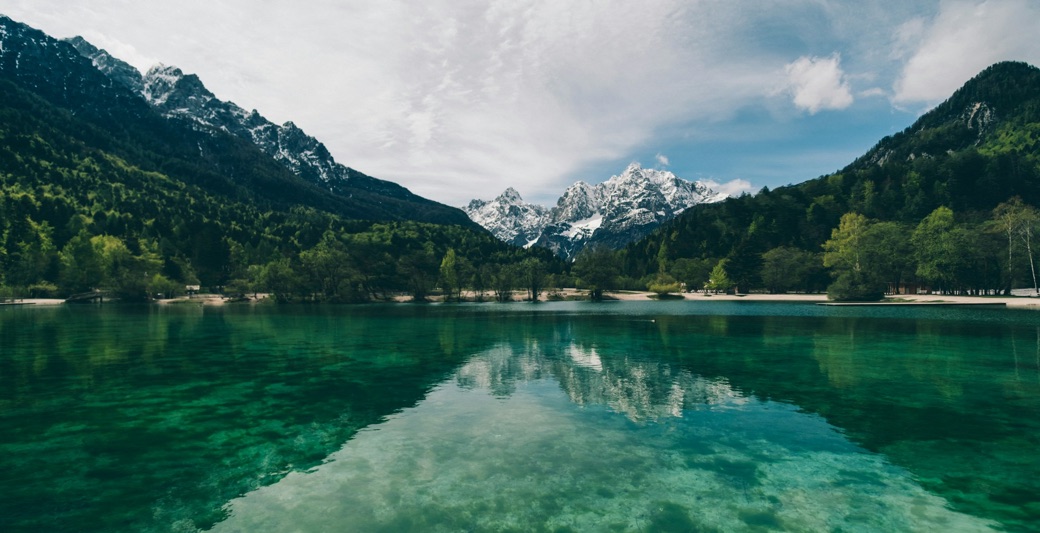
Content-Aware Scale for Affinity makes a photo narrower, wider, shorter or taller by taking pixels out of (or adding them to) the empty parts: sky, water, walls. People, buildings and mountains keep their shape. It's the Photoshop feature Affinity doesn't have, as a script.
// see it
Same photo, 70% of the width
// how it works
How you use it
1 · Select the photo's layer
Open a photo in Affinity and click its pixel layer (for a JPEG, the Background layer).
2 · Run the script
Type the new width and height in percent, from 10% to 300%. Tick "Fit the canvas" to crop the canvas to the result.
3 · Done
The result appears as a new layer and the original is hidden underneath, so nothing is lost: delete the new layer and show the original to go back.
Protect what matters
If a face or a logo gets cut, paint over it (any colour) on a new pixel layer named Protect. The script leaves those pixels alone.
Remove what you don't want
Paint over a person or an object on a layer named Remove, then make the photo narrower: they're taken out first.
Fast enough
A 1600 px photo takes about a second. A 24-megapixel photo takes 15–30 seconds, and a Remove layer makes it slower; Affinity is busy until it finishes.
// get it
Get Content-Aware Scale
Prices exclude VAT or sales tax where it applies. You sign in with a code sent to your email (no password), so you can download again later.
// in affinity
Installing the script
1 · Turn on scripting
In Affinity: Settings → Scripting → Enable Affinity Scripting.
2 · Paste and save
Window → Scripting → Script Editor → New Script, paste the downloaded file, then Save As to keep it in your Scripts Library.
3 · Run it any time
Select a photo layer and click the script in the Scripts Library.
// questions
Questions
Which Affinity do I need?
The current Affinity app (free, by Canva), version 3.3 or later, which has scripting. Affinity Photo 1 and 2 have no scripting.
Does it work on every photo?
It works best where there's calm space to take away or add: sky, water, grass, walls, studio backgrounds. On photos packed with detail from edge to edge, or when shrinking a lot, straight lines can bend; use a Protect layer, or shrink less. It works on 8-bit RGB pixel layers (JPEG, PNG and most photos).
Is it the same as Photoshop's?
It's the same idea (seam carving: removing the least noticeable paths of pixels), written from scratch for Affinity. Photoshop's Protect option uses a saved selection; here you paint a Protect layer instead.
Can I share the script?
It's for your own use, including client work. Each download carries your licence ID. Please don't share or resell the file.
What if it doesn't work for me?
Contact us within 14 days for a refund.
What do you store?
Only your email, for sign-in and to find your purchase. Your photos never leave your computer: the script runs inside Affinity. The privacy policy and terms are shared with Action Converter.
Questions?
Ask us anything about Content-Aware Scale. We reply within one business day.
Photoshop is a trademark of Adobe Inc. Affinity is a trademark of Canva. Content-Aware Scale for Affinity is made by Senyi Labs and is not made, endorsed or sponsored by Adobe or Canva. Example photo from Unsplash.